· patched
Solving the Docker in Docker dilemma in your CI Pipeline
Your tests need containers and your CI agent already is one. Docker in Docker versus sharing the host’s docker.sock, and what each one costs.
- CI/CD
- Docker
- #agent
- #ci
- #docker
- #docker in docker
- #pipeline
Most modern test suites contain some tests – integration, end-to-end, component, pick your favourite term – that rely on external resources: a database, a queue, sometimes another team’s application. We usually mock those with a Docker container, which is easy enough on a developer’s laptop:
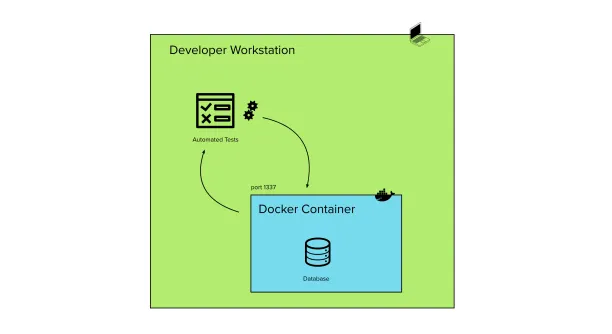
It gets trickier in the team’s CI pipeline, because a lot of modern CI/CD tools like Jenkins or GoCD run their build agents as Docker containers themselves. Running those tests there means spawning Docker containers from within another Docker container – which, as we are about to see, is not trivial.
Making Docker in Docker work
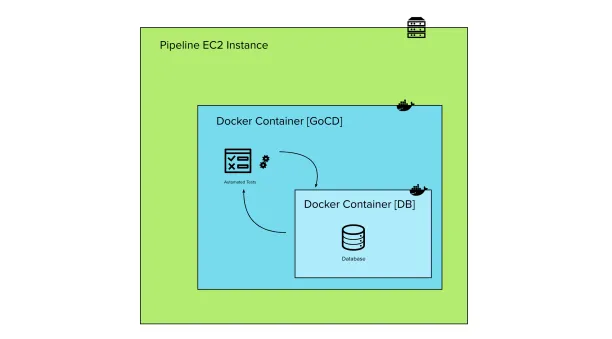
It used to be impossible to run Docker inside Docker, because some of the low-level black magic Docker needs in order to run isn’t available in an underprivileged environment like a container.
All of that changed with this update, which introduced the concept of privileged mode, where a container can effectively be run with almost all the capabilities of the host machine. You can leverage privileged mode to create a container that is able to spawn other containers (particularly, you will want to run your agent image in this way).
You can do so by adding the --privileged flag like this:
$ docker run --privileged <agent-image> <command>Or, if you are using docker-compose:
version: '3'
services:
  myagent:
    # other things
    privileged: true
You need to make sure that Docker is installed in the agent image you are using, along with all of its dependencies. You can refer to the article above and/or to the Dockerfile of the dind (Docker in Docker) image: https://github.com/jpetazzo/dind/blob/master/Dockerfile.
Running the tests
If you managed to configure your agents in this way, you should be able to run your tests with the same setup as you had in the local environment.
Your container will simply be started by the now privileged agent instead of by the host machine, but all of that should be transparent to the application.
Issues
However simple it looks, this approach presents some undesired complications:
- There is a long list of dependencies to install in order for Docker to work inside the container, some or all of which might not be present in the images you’re working with. Therefore there might be quite a lot of fiddling to do just to get it running.
- Docker in Docker is still not 100% free of low level, hard to debug issues, as this article sums up.
- Running containers in privileged mode is dangerous, and opens the possibility of privilege escalation by malicious users of the CI server. Since our CI servers are also usually deploying infrastructure (and they need the necessary roles and permissions to destroy it), they can be one of the most dangerous systems in our organisation to leave poorly secured.
A better approach: shared docker.sock
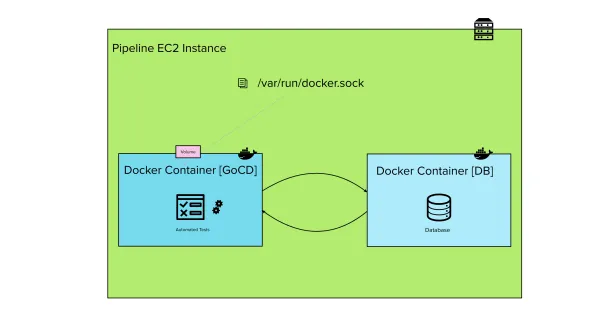
For most pipelines there is no real need to have the Docker containers used for tests running within the agent container. The requirement most often is just to be able to start a Docker container from some test code running within the agent, but then the container could theoretically run anywhere that can be reached by our application for the purpose of our tests.
For this reason, another possible setup for our pipeline is Docker beside Docker, instead of Docker within Docker.
We can achieve this setup by sharing the UNIX socket file used by Docker as a volume inside the agent container. In order to understand how this works, let’s first go through a high-level refresher of the Docker architecture.
The Docker Architecture
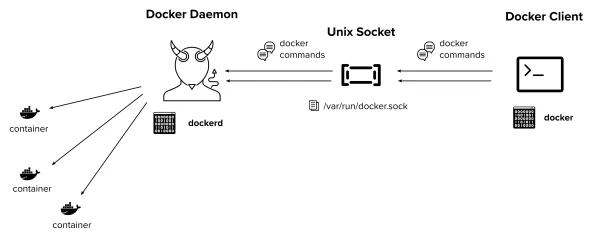
Docker uses three high level components in order to work:
- Docker Daemon: the persistent process that manages containers in the background. Docker uses different binaries for the daemon and the client.
- Unix Socket: the
docker.sockis the UNIX socket that the Docker daemon listens on. It’s the main entry point for the Docker API, and what the client sends its commands to. It is located in/var/run. - Docker Client: the base binary that provides the Docker CLI to the user. It communicates with the daemon through the
docker.sock.
The same socket can be used by multiple clients, which makes this alternative solution possible.
Sharing the docker.sock
We want a Docker client inside our pipeline agent to talk to the host machine’s Docker socket. This way the agent is able to start “sibling” containers by talking to the daemon running on the host (instead of its own daemon like in the previous solution).
We can achieve this by sharing the host’s /var/run/docker.sock file to the agent container as a volume.
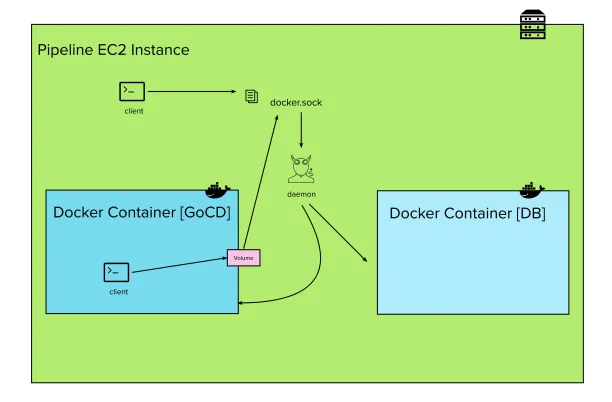
The Docker client on the agent would then speak to /var/run/docker.sock as if it were its own local one.
This is the command we would run with the CLI:
$ docker run -v /var/run/docker.sock:/var/run/docker.sock <agent-image> <command>And the service definition if we are using docker-compose:
version: '3'
services:
  myagent:
    # other things
    volumes:
      - /var/run/docker.sock:/var/run/docker.sock
Running the tests
Unfortunately, unlike the previous solution, we must now take into account that the container we are talking to is not a child of the current one. Therefore, any network setup that relies on that being the case will not work anymore.
As an example, locally and in the previous solution we might have been running our tests against localhost:port by making use of the port forwarding feature like this:
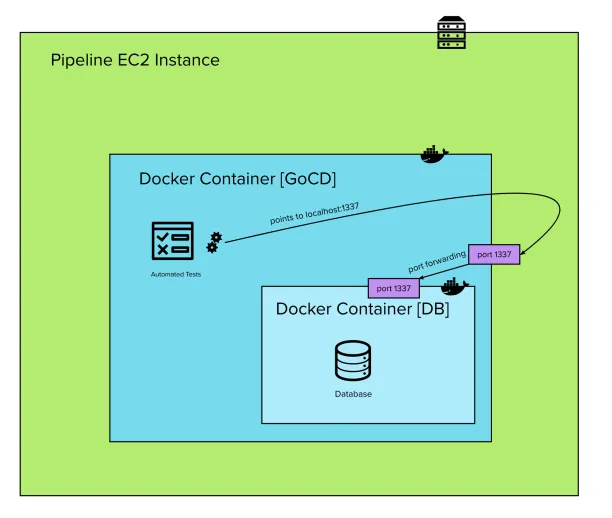
However, when the daemon is shared, the same port forwarding will actually refer to the host’s view of “localhost”, not the agent’s. Therefore we have to rethink our approach and refer to the container by its IP address instead:
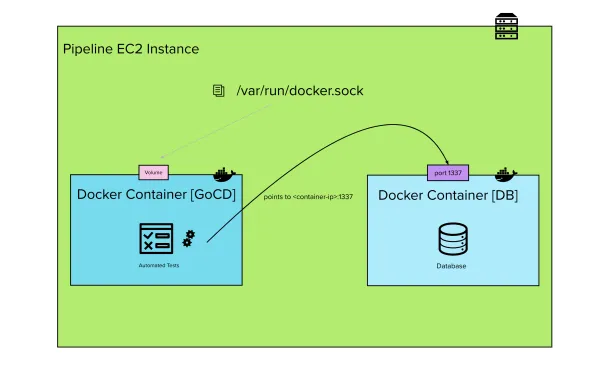
You can get a container’s IP address in a number of ways, such as this command through the Docker CLI:
$ docker inspect -f '{{range.NetworkSettings.Networks}}{{.IPAddress}}{{end}}' <container>Or programmatically, for example if you’re using Java and the Test Containers library…
String containerIp = container.getContainerIpAddress();The only problem with IP addresses of containers is that they are not very reliable and might change, so we might prefer a more stable, non-programmatic way to refer to our containers in the code.
Docker happens to offer a DNS resolution service, where it assigns stable names to containers which are in the same user-defined network. We can leverage this feature by getting the database container and the agent container onto the same network, for example with this connect command:
$ docker network connect <database-network-name> <agent-container-name>We should then be able to refer to the database container via its container name in our tests, like my-db:<port>. This is especially convenient when using docker-compose as we have the network already sorted out for us, with predictable default container names.
More details on DNS resolution and container networking in the official documentation.
Conclusion
There are two main ways to run Docker containers from within our CI pipeline agents:
- as children of our agent container, which might be complicated and open security holes
- as siblings of our agent container, which is much more straightforward to set up and better for security, but presents some overhead for the application to be able to reach the container
The second approach is definitely the most popular, even according to the people who wrote the feature that allows Docker to run within Docker, but ultimately it is a tradeoff for the developers to consider.